

macOS APFS Storage Guide
Why deleting files on Mac APFS doesn’t immediately free disk space.
You deleted 25 GB of build outputs or videos, emptied Trash, and macOS still reports almost the same free space. Here is what APFS is actually holding—and how to verify real recovery.
Published · macOS APFS (Ventura & later)
1. Four Storage Numbers That Often Disagree on macOS
Most confusion around Mac storage comes from treating four different measurements as one number. Cublet separates them explicitly:
| Term | What It Measures | Why It Can Differ |
|---|---|---|
| Allocated space | Physical disk blocks attributed to files inside a scanned folder. | Can exceed or fall below logical file size due to sparse files, compression, and APFS clones. |
| Available space | Free capacity macOS reports as usable for new writes right now. | Does not rise until every APFS snapshot, clone, or process handle releases the freed blocks. |
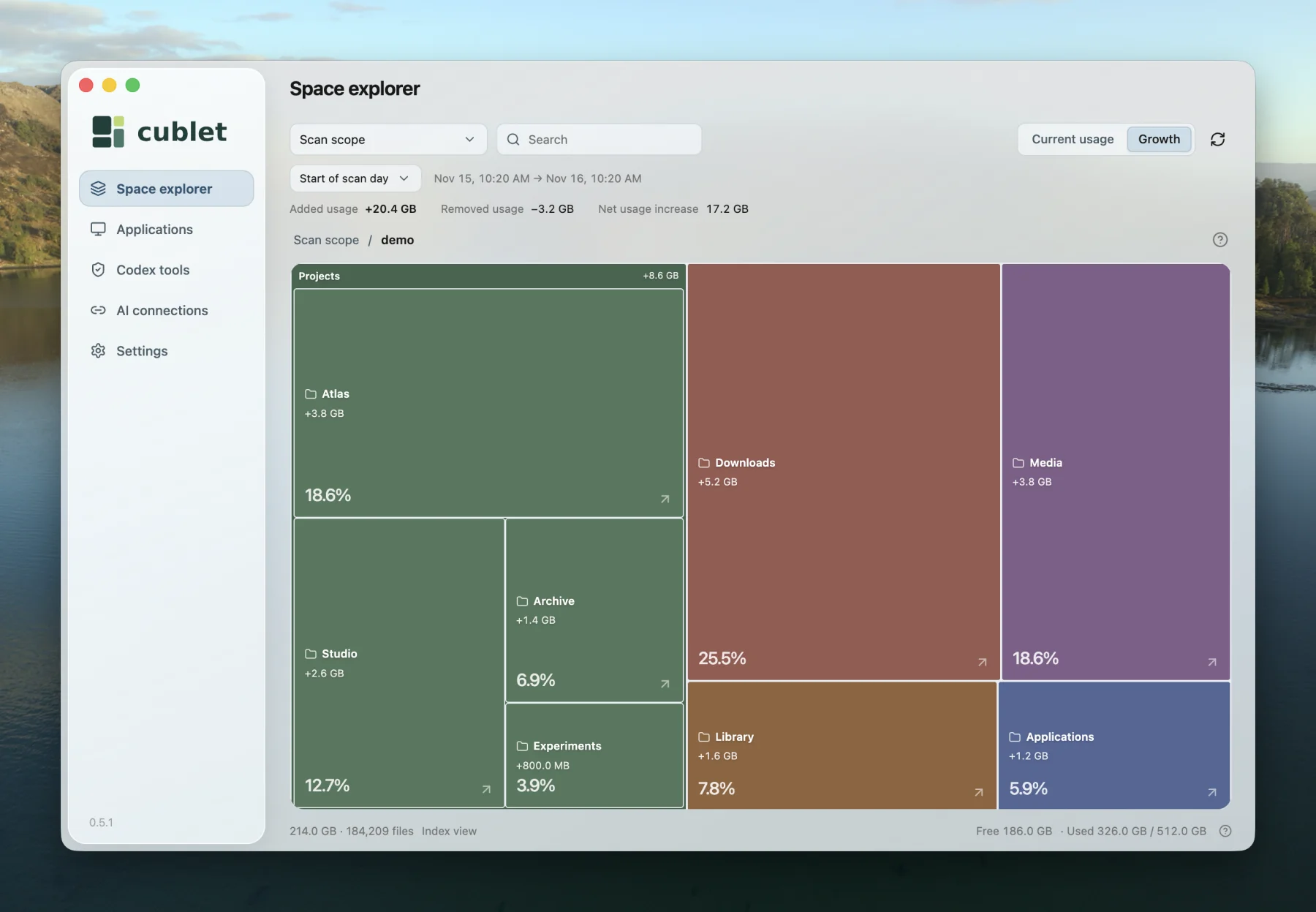
| Growth | Delta between two completed Cublet scans of the same directory scope. | Isolates what actually grew (added vs removed vs net) even when total free space fluctuates. |
| Recovered space | Sustained gain in volume available space verified after cleanup. | Separates true recovery from transient drops caused by concurrent background writes. |
2. Five Real Reasons Free Space Stays Stuck on APFS
- APFS local Time Machine snapshots: macOS takes local hourly snapshots on your internal SSD when your backup disk is disconnected. Deleted files remain pinned inside those snapshots until macOS purges them under pressure or you remove stale snapshots in Disk Utility.
- APFS copy-on-write clones: Duplicating a large folder or VM image on APFS shares the same physical blocks without copying data immediately. Deleting one copy releases zero shared blocks until the remaining clone is also removed.
- Hard links: Package managers (such as
pnpmstores or Homebrew cells) frequently hard-link files across directories. Deleting one link leaves the underlying inode allocated. - Files still in Finder Trash: Moving items to Trash never frees APFS blocks until Trash is emptied.
- Open file handles: A running daemon, IDE, or container that still holds an open file descriptor to a deleted log or cache file keeps those blocks allocated until the process exits or rotates the file.
3. Step-by-Step APFS Verification Workflow
- Inspect APFS local snapshots: Open Disk Utility → View → Show APFS Snapshots on your Data volume, or run
tmutil listlocalsnapshots /in Terminal to see what snapshots exist before deleting anything. - Capture a baseline scan before deleting: Scan your target folder (or home directory with Full Disk Access) in Cublet’s Space Explorer so Cublet saves a local SQLite baseline.
- Check what actually grew instead of guessing: After disk space drops again, open Growth in Cublet to compare against your baseline. A 12 GB runaway cache stands out immediately next to a 100 GB static archive.
- Verify sustained available space after cleanup: Empty Trash if needed, close active writers, and confirm available volume space rises—or let Cublet Cleaner (MCP) check active builds and verify sustained recovery automatically.
Frequently asked questions
Why does Finder still show low free space right after I delete 20 GB of files?
On macOS APFS, deleted blocks are often still referenced by local Time Machine snapshots, APFS copy-on-write clones, hard links, items sitting in Trash, or an open file handle held by a running process.
What is the difference between allocated space and available space in Cublet?
Allocated space counts the physical disk blocks occupied by files in a folder. Available space is what macOS reports as usable for new writes. Removing cloned or snapshot-referenced files can lower allocated usage before available space rises.
How can I check whether APFS local snapshots are holding space?
Open Disk Utility, enable View → Show APFS Snapshots, and inspect your data volume, or run tmutil listlocalsnapshots / in Terminal. You can then rescan with Cublet Growth to verify actual available-space recovery.